


How to activate Office by Phone? Activation Guide

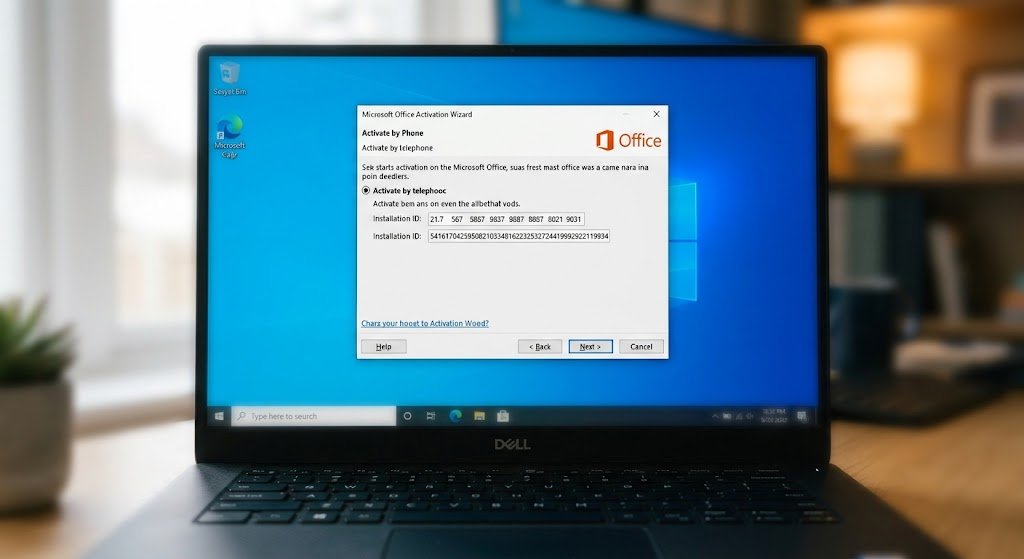
How do i activate office by phone ?
Below is the standard message you will receive to prompt phone activation.
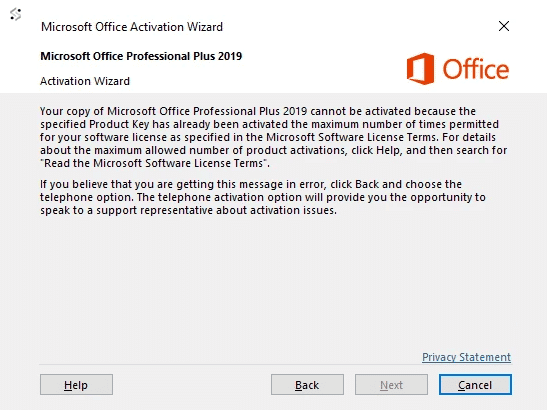
If you have the following error message above when trying to activate office 2019/2016 with your license key please see below.
To start the simple process of activation over the phone please see below
Method 1
Using: Get Confirmation Id Online
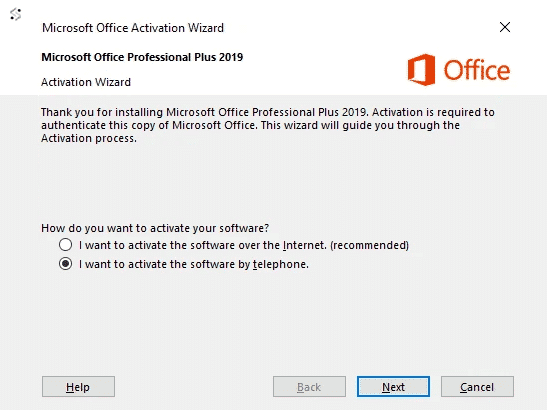
Now click NEXT.
First select your country
Check the example of this windows below.
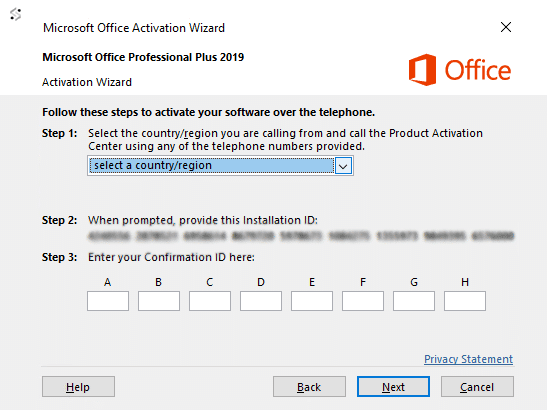
- Copy the Installation Id displayed on step 2 to a Clipboard on your PC.
- Go to: Get Confirmation Id Online
- Enter the Installation Id you copied to the Clipboard on Installation Id (IDD) box.
- Click on Get.
- Copy the Confirmation ID (CID).
- Enter the Confirmation ID (CID) on A B C.. boxes then click Next.
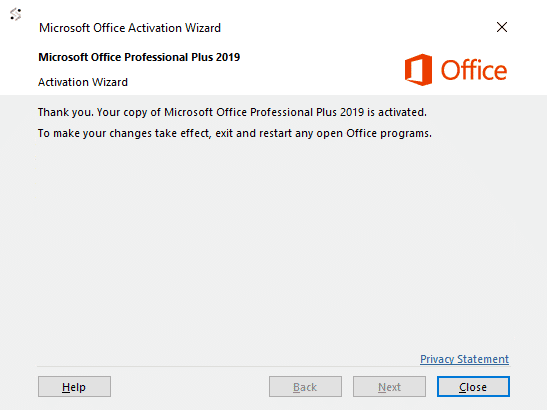
7. The activation of your Office is Done.
Method 2
Call Microsoft Center
Now click next to NEXT.
You will see the telephone activation section.
First select your country, this will enable Microsoft to generate you a phone number to call.
An example of this windows is below.
Follow the steps below for how to activate office 2019 via telephone:
1 – Start by calling your chosen number.
2 – Now press option 1 to consent to call recording.
3 – Enter the auto generated security number if asked on the telephone keypad.
4 – Now press option 3, do NOT press option 2, this will fail activation.
5 – Now press option 1.
Microsoft will now ask for your Installation ID, type it into your telephone keypad carefully.
6 -You will now be asked how many uses, press 0. (The reason we choose 0 as you have not activated this on any PC yet)
7 -The automated system will now verify your Installation ID and generate you a Confirmation ID
* (if not see bottom of page)
8 -Type the Confirmation ID into your PC carefully and press next.
9 -Your activation is successful and fully installed on your PC.
10 -now press option 2 on your telephone keypad to complete the activation.
Please see the image below.
Need Help Getting Your Confirmation ID?
If you have any trouble collecting your Confirmation ID by phone, for example if the automated system doesn’t accept your Installation ID, the call won’t connect in your country, or the line asks you to speak to an agent, don’t worry. We can handle the activation for you.
Simply email us with the following details:
- Your Installation ID: the full set of numbers shown in the Office Activation Wizard (Step 2 of the phone activation screen). Please copy it exactly, or send a clear screenshot of the window.
- Your order number: this helps us verify your purchase and locate your product key quickly.
- Your Office version: for example, Office 2019, 2021 or 2024 Professional Plus.
Once we receive this information, our team will process your Installation ID and send your Confirmation ID back to you by email. Then just enter it into the Activation Wizard, click Next, and Office will be fully activated. Keep the Activation Wizard window open while you wait. If you close it, Office will generate a new Installation ID and you’ll need to send us the updated one.
Still Having Trouble?
If you receive an error code during activation, such as “This product key has been blocked”, “We couldn’t activate Office”, or a code like 0xC004C060, our technical support team is here to help. Please contact us at support@mlicenses.com and include:
- A screenshot of the error message
- Your order number
- The steps you followed before the error appeared
We’ll review your case and get back to you as quickly as possible with a solution, so you can start using Office without further delay.